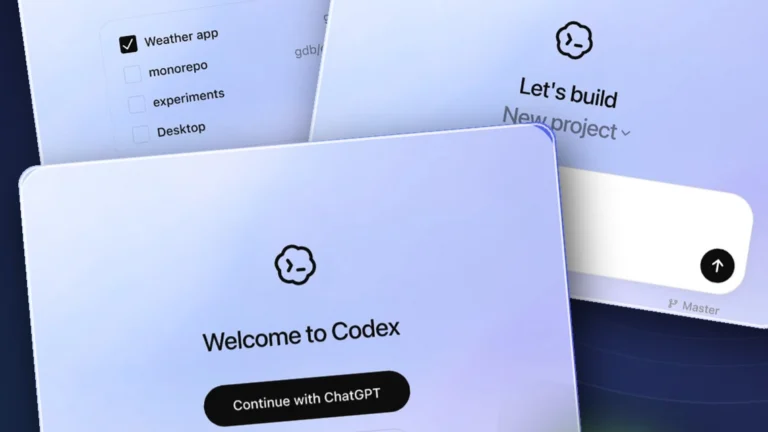
Continue Your Codex Work from Your Phone: Galaxy Remote Setup
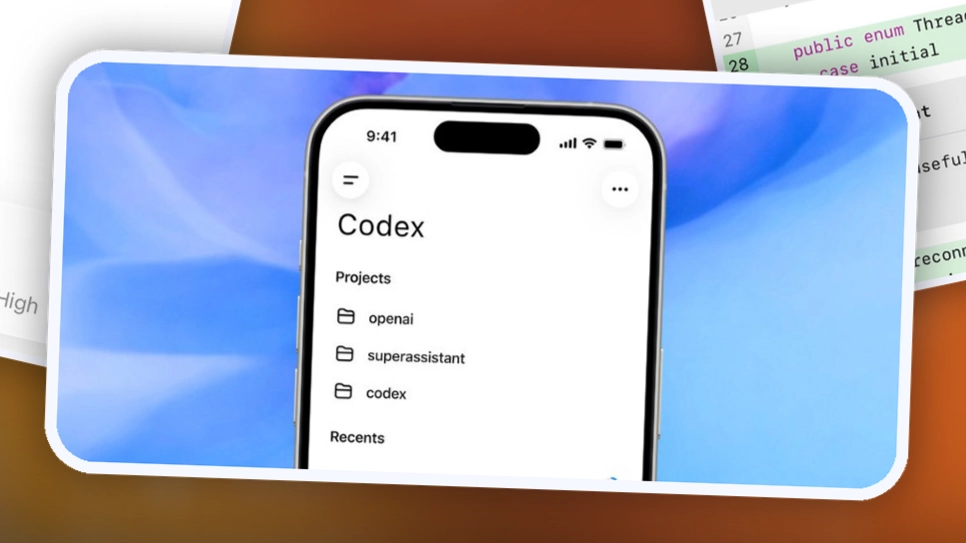
Have you ever needed to check Codex work on your PC while you were away? With Remote connections in the ChatGPT mobile app, you can check progress from your Galaxy phone and send the next instruction in the same task. This guide walks through connecting your PC and phone.
For the basics of opening Codex on your PC and choosing a working folder, see Part 1: OpenAI Codex for Beginners. If you have not set up your PC yet, start there first.
What you need
- A ChatGPT account with access to Codex
- A PC with the ChatGPT desktop app installed
- A Galaxy phone with the ChatGPT mobile app installed
- The same account and workspace signed in on both devices
Your PC needs to be on and connected to the internet.
1. Connect your PC and Galaxy phone
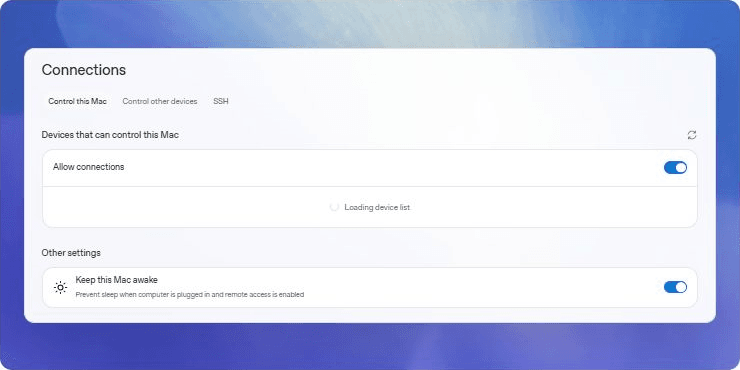
Open the ChatGPT desktop app on your PC. Go to Settings → Connections → Control this Mac or PC, then choose Set up or Add to start connecting. A QR code will appear on the screen.
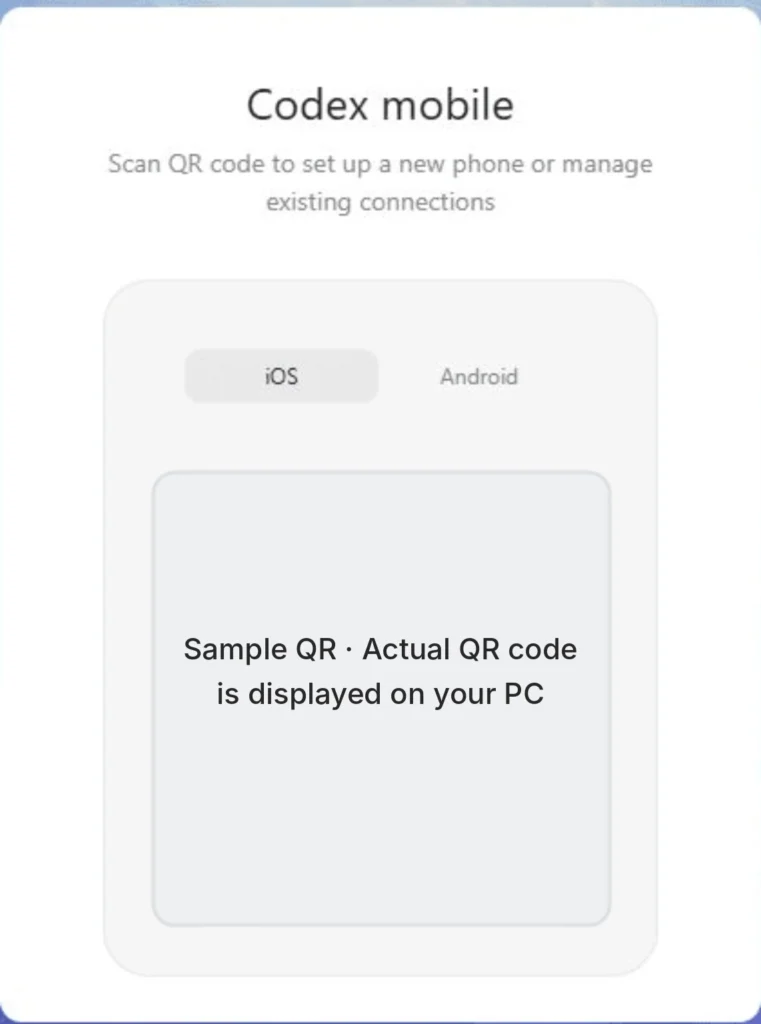
Scan the QR code with your Galaxy phone and finish connecting in the ChatGPT app.
Once connected, open Codex in the ChatGPT mobile app. The menu may currently appear as Remote.
2. Check progress and send the next instruction
Open the conversation you were using on your PC to see how far Codex has progressed. You can send a follow-up instruction and review the progress and files that changed.
If Codex asks for access or approval, read the request before deciding. If you are unsure what it will do, ask for an explanation before approving it.
If your connected PC does not appear
- Check that both devices use the same ChatGPT account and workspace.
- Update the ChatGPT desktop and mobile apps to the latest version.
- Make sure the PC is on, connected to the internet, and running the ChatGPT app.
- If Codex or Remote does not appear in the mobile app, update it and check again.
You can use this setup to check and continue Codex work from your PC on a Galaxy phone. To start with choosing a PC folder, read Part 1: OpenAI Codex for Beginners.
For more details, see OpenAI’s official Remote connections guide.