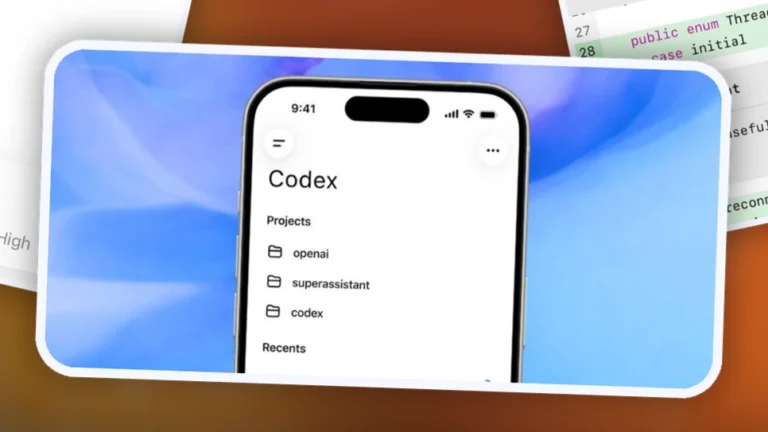
OpenAI Codex for Beginners: A Practical First Guide
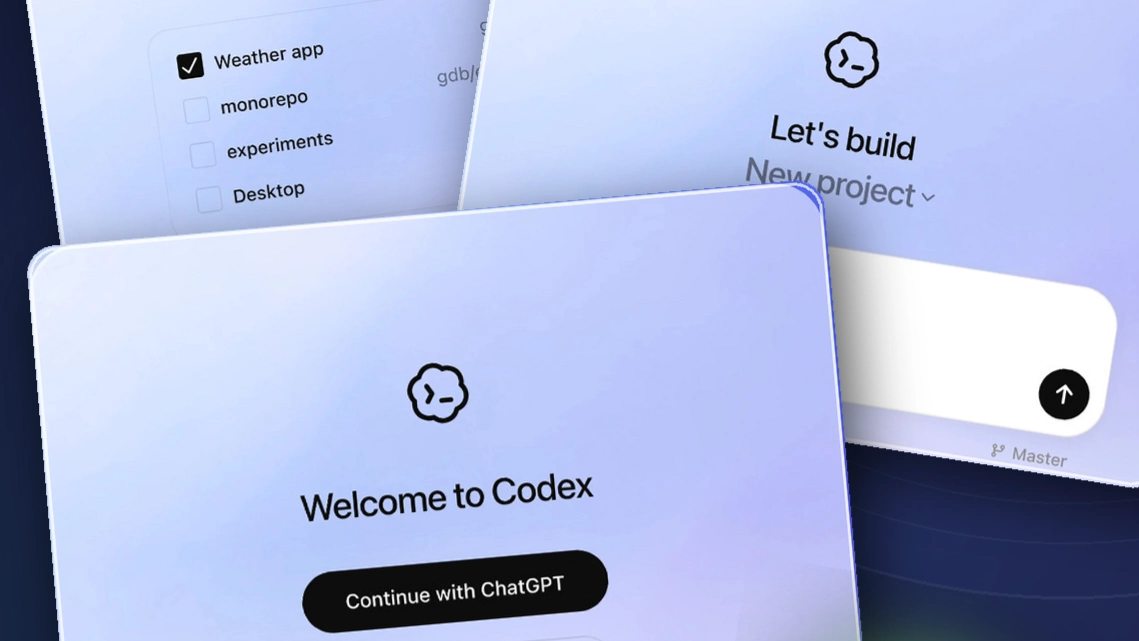
A practical first guide for anyone new to Codex.
What is Codex?
Codex is an AI agent that helps with coding. It is built for software development and technical work, but it can also help with other computer tasks, such as reviewing and organizing project files. You do not need to understand every detail of how agents work before you begin. For now, think of Codex as a tool that can carry out work you describe.
How do you get started?
Start by turning on your computer. Codex tasks are also available on phones, but this guide focuses on working directly with folders and files on a PC. The mobile experience can continue Codex Cloud tasks or connect remotely to desktop Codex, depending on how you start the task. I will cover using Codex from a Galaxy phone in the next article.
1. Install the ChatGPT desktop app
Sign in to your ChatGPT account on your PC, then install the desktop app by following the official OpenAI guide.
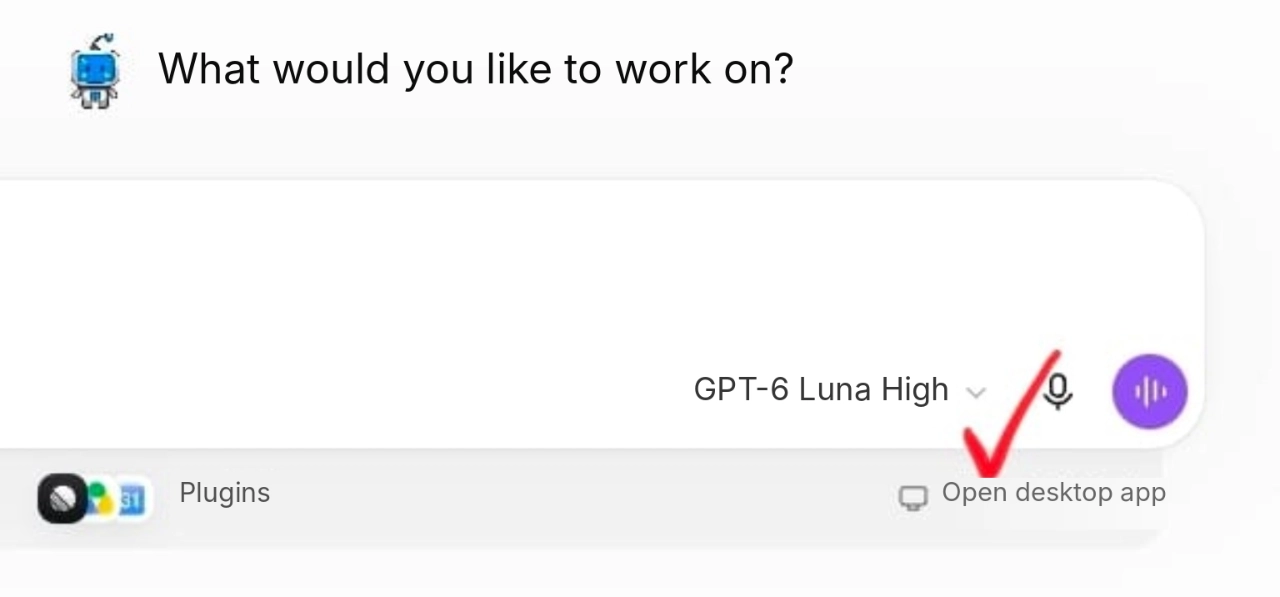
You can use Codex on the web too. This walkthrough uses the desktop app because we will work directly with a local folder on your PC. The installation screen may look different depending on your account and setup. If you do not see an install button, use the official guide linked above.
2. Open Codex
Open the menu in the upper-left corner of the app and choose Codex. Chat, Work, and Codex are separate experiences. Work is suited to general multi-step tasks such as research and document creation. Codex is focused on coding and other technical work.
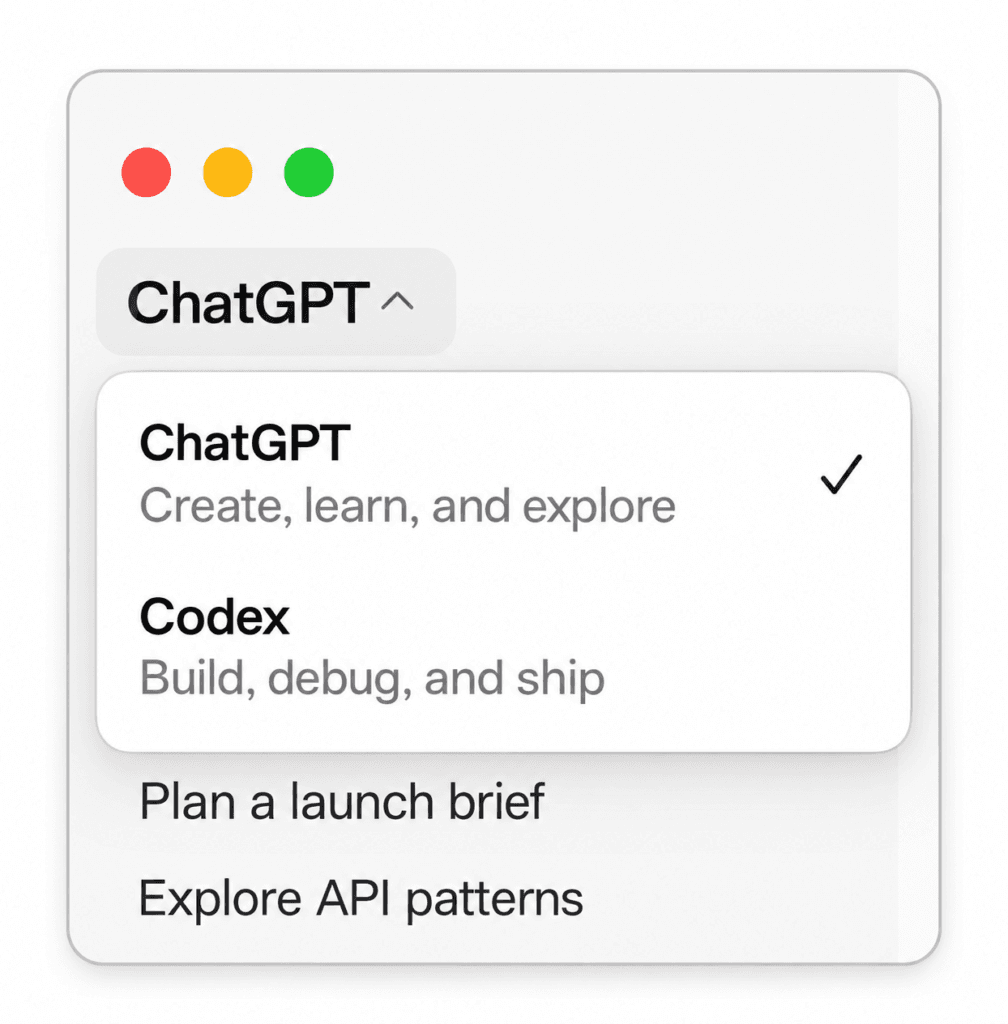
For current access and plan details, see OpenAI’s Codex usage guide.
3. Choose a project and working folder
Add a new project and choose the folder Codex should work in. To start, you can create a practice folder on your desktop. If the app asks for a project name, use any name you like. “Practice folder” is fine if nothing comes to mind.
4. Practice organizing files safely
Do not start with important files. Copy a few unimportant files into your practice folder, then ask Codex to show you a plan before it changes anything.
Check only the file names and extensions in this folder, then show me a plan for organizing them by type. Do not open the files or create folders or move anything yet.
Read the plan first. If it is not what you want, ask Codex to revise the plan before it starts. If it looks right, then ask it to organize the files.
Great. Create the folders and move the files according to the plan you just showed me. Do not delete, rename, or overwrite any files. Leave files with duplicate names or unclear categories untouched and tell me about them. When you are done, summarize where you moved everything.
If Codex asks for permission or approval, read what it is asking to do before you approve it. Because this task changes files directly, practice with copies instead of important material and check the result when it finishes.
5. Give follow-up instructions when you want a change
You do not have to get the prompt perfect on the first try. Check the result, then describe what you want to change. For example, after updating a webpage, you could ask Codex to make the mobile layout easier to use:
The page works well now, but the buttons feel cramped on my phone and the text is small. Keep the desktop layout as it is, and make only the mobile view easier to use.
Good first tasks for Codex
- Making changes to HTML, CSS, or JavaScript webpages
- Finding and fixing the cause of a bug
- Adding a small feature to an existing project
- Improving a mobile interface
- Explaining code structure and how files relate
- Cleaning up repeated code or configuration
Next: In Part 2: Continue Your PC Codex Work from a Galaxy Phone, I will show you how to check progress and send the next instruction from your phone.